
Let me be straight with you — a website not indexing in Google Search Console is one of the most frustrating problems in digital marketing. You spent days writing solid content, structured your page properly, maybe even submitted your sitemap. But Google? Google simply refuses to show your page in search results.
I’ve seen this happen to brand new blogs, well-established websites, and even e-commerce stores with hundreds of products. The reasons vary, but almost every case is fixable — once you know where to look.
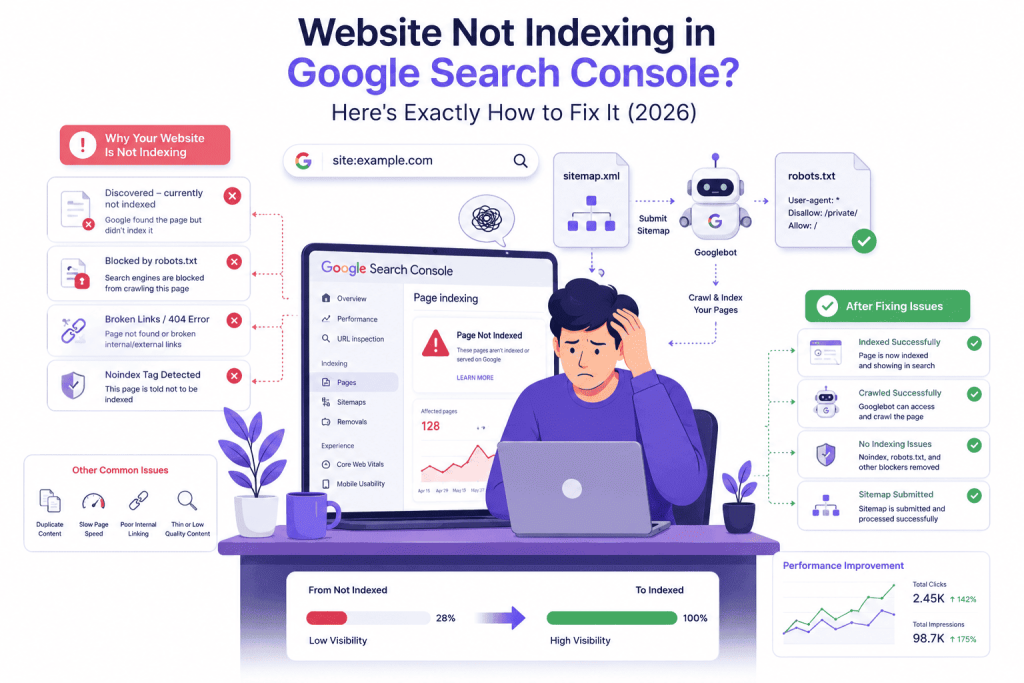
What Is Google Indexing ?
When Google indexes your page, it means Googlebot has crawled your content and stored it in its massive database — the index. Only indexed pages can appear in search results. If your page isn’t indexed, it simply doesn’t exist as far as Google is concerned.
The process works like this: Google discovers your URL → crawls it → indexes it → ranks it. Most people assume their pages automatically move through all four stages. They don’t. There are landmines at every step — and this guide covers every single one.
Check the GSC Pages Report First
Open Google Search Console → Indexing → Pages. You’ll see a breakdown of indexed vs. not indexed URLs. The “not indexed” section tells you why each page was skipped. This is your diagnostic dashboard — don’t skip it.
Here are the statuses you’ll commonly see and what they mean:
- Discovered – currently not indexed — Google knows the page exists but hasn’t crawled it yet. Usually a crawl budget or internal linking issue.
- Crawled – currently not indexed — Google visited the page but chose NOT to index it. Often a content quality signal.
- Excluded by noindex tag — A meta tag is actively blocking indexing. Usually a developer mistake.
- Blocked by robots.txt — Your robots.txt file is telling Googlebot to stay away.
- Alternate page with proper canonical — A canonical tag is pointing Google to a different “master” version of the page.
Identify your exact status before trying any fix. Treating a crawl budget problem like a content quality issue wastes your time.
The 6 Most Common Reasons Your Website Is Not Indexing
Reason 1 — Noindex Tag Accidentally Left On
This is embarrassingly common. Developers add a noindex meta tag during staging to prevent Google from crawling the test version — and forget to remove it at launch. Check your page’s HTML head section for this line:
<meta name=”robots” content=”noindex”>
If you’re on WordPress, go to Settings → Reading and confirm “Discourage search engines from indexing this site” is unchecked. One forgotten checkbox can tank your entire site’s indexing overnight.
Fix: Remove the noindex tag from all public-facing pages. Then use the URL Inspection Tool in GSC to request reindexing.
Reason 2 — Robots.txt Is Blocking Googlebot
Your robots.txt file tells crawlers which pages to visit and which to skip. A misconfigured robots.txt is a silent killer — it doesn’t throw an error, it just quietly stops Google from ever seeing your content. Type yourdomain.com/robots.txt in your browser. A dangerous entry looks like:
User-agent: *
Disallow: /
That single rule blocks every crawler from your entire website. It should look like this instead:
User-agent: *
Disallow:
Fix: Test your robots.txt using GSC’s built-in Robots.txt Tester tool and correct any wrong Disallow rules immediately.
Reason 3 — Thin or Low-Quality Content
If GSC shows “Crawled – currently not indexed,” Google visited your page and decided it wasn’t worth storing. This is a content quality verdict. Pages under 300 words, pages that simply restate what dozens of other websites say, or AI-generated content that lacks real insight — these are increasingly being filtered out of the index.
Since Google’s May 2026 quality updates, pages that lack E-E-A-T signals (Experience, Expertise, Authoritativeness, Trustworthiness) are crawled but intentionally excluded from the index. Google is essentially saying: “We saw it. We didn’t want it.”
Fix: Add original insights, real data, first-hand experience, or expert perspective. Write content that genuinely solves what the user is searching for — not just what a keyword tool tells you to write.
Reason 4 — Crawl Budget Issues
Google doesn’t crawl every page of your site every day. It has a crawl budget — a limit on how many pages it’ll visit in a given timeframe. If your site has hundreds of low-value pages (tag archives, filter pages, duplicate category pages), Google wastes its budget on those and skips your important content.
This is exactly why your homepage gets indexed immediately but your blog posts sit in “Discovered – currently not indexed” for weeks.
Fix: Audit your site for URL bloat. Block low-value URLs using robots.txt or add noindex tags to them. Improve internal linking from your homepage and high-authority pages toward your new content — this signals priority to Googlebot.
Reason 5 — No Internal Links Pointing to the Page
Google discovers new pages primarily through links. If your new blog post has zero internal links pointing to it from other pages on your site, Googlebot may never find it — or won’t consider it important enough to index.
Every new page needs at least one contextual internal link from an existing, already-indexed page. This is basic, but it’s skipped constantly.
Fix: After publishing any new page, immediately go back to 2–3 older related posts and add a natural, contextual internal link pointing to the new one. Link from pages that already rank — they pass authority to your new content.
Check also this – Digital Marketing for Beginners: A Complete Guide to Start Learning Online (2026)
Reason 6 — Sitemap Not Submitted or Outdated
An XML sitemap is your way of saying: “Hey Google, here’s a full list of every page I want you to index.” Without a submitted sitemap — especially for new websites — Googlebot has to discover your pages one link at a time, which can take weeks. An outdated sitemap that still references deleted pages also burns crawl budget on dead ends.
Fix: Go to GSC → Sitemaps → Submit your sitemap URL (usually yoursite.com/sitemap.xml). If you’re on WordPress, Yoast SEO or Rank Math auto-generates and keeps your sitemap updated.
Quick-Fix Checklist — Do This Today
Work through this list top to bottom. Most Google Search Console indexing issues are solved by the first four steps:
- Check the GSC Pages Report and note the exact “not indexed” reason for each URL
- Inspect your page source code for any noindex meta tags
- Test your robots.txt using the GSC Robots.txt Tester
- Submit or refresh your XML sitemap in Google Search Console
- Add internal links from 2–3 existing indexed pages pointing to your new content
- Improve content quality — add original data, opinions, and E-E-A-T signals
- Use URL Inspection Tool → Request Indexing for individual priority pages
What About “Discovered – Currently Not Indexed”?
This is the single most common frustration I hear from bloggers and small business owners in India. You submitted the sitemap. You requested indexing. Yet that status just sits there, unchanged, for weeks on end.
Here’s the honest truth: Google is not obligated to index every page on the internet. It prioritizes pages based on quality, authority, and perceived relevance. “Discovered – currently not indexed” often means your page is in a queue, but stronger content jumped the line.
The fixes that consistently work: improve the page’s content depth, earn even one quality backlink pointing to it, add more internal links from authoritative pages on your site, and make sure the page loads fast on mobile. Give Google a compelling reason to prioritize your page over the millions of others waiting in the same queue.
The Bottom Line
A website not indexing in Google Search Console is rarely a single-cause problem. It’s usually a combination of technical blocks, content quality issues, and crawl inefficiencies all working against you at the same time.
The good news? Every issue covered in this guide is fixable. The key is diagnosing the root cause accurately — using GSC’s Pages report as your compass — before jumping into solutions.
Fix the technical stuff first (noindex tags, robots.txt, sitemap). Then improve content quality. Then strengthen internal linking. Indexing will follow. Give it 1–2 weeks after each fix before drawing conclusions.
If you’re still stuck after going through this checklist, drop your GSC screenshot in the comments — we’ll help you diagnose it.
The most common reasons are a noindex meta tag, robots.txt blocking Googlebot, thin content, no sitemap submitted, weak internal linking, or a crawl budget problem. The GSC Pages report under the Indexing tab shows the exact reason for each URL.
A brand new website can take 4 days to 4 weeks. Established sites with good domain authority often get new pages indexed within hours. Speed up the process by submitting your sitemap and using the URL Inspection Tool to request indexing manually.
Google visited your page but decided not to add it to the index — usually because the content was considered thin, duplicate, or low quality. Improving content depth, originality, and E-E-A-T signals is the fix.
No. A sitemap helps Google discover your URLs faster, but it doesn’t guarantee indexing. Google still evaluates each page for quality and relevance before deciding to store it in the index.
Yes. When a credible external site links to your page, Google’s crawler follows that link and is far more likely to index your content quickly. Even one solid backlink can significantly speed up indexing for a new page.